How to create a Presentation?
Select Render Walk → Presentation from the side menu.
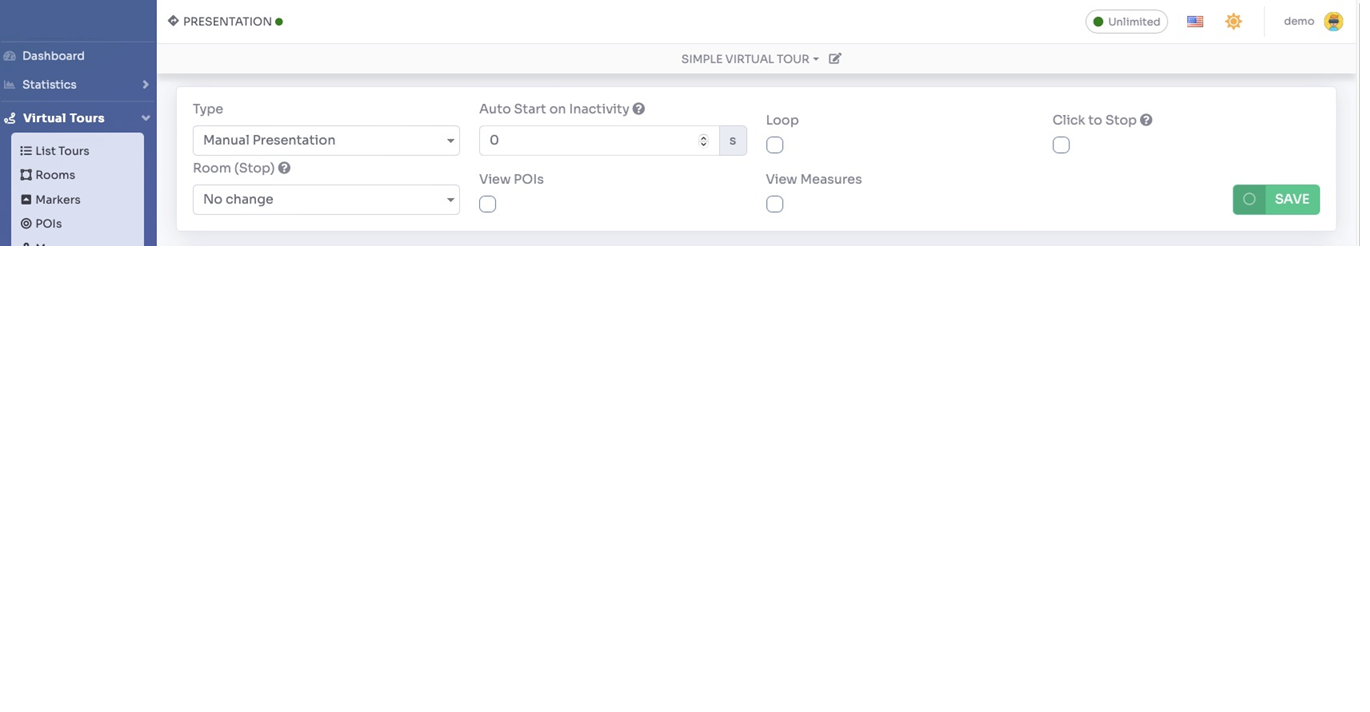
Here you can edit the Presentation settings and change the visibility of UI elements during the Presentation:
- Type — Manual, automatic, or video (described below)
- Auto Start on inactivity — After the set time of inactivity the presentation will start automatically
- Loop — Whether to loop the presentation or run it only once
- Click to Stop — By clicking on the screen the presentation will be interrupted
- Room (Stop) — Destination room after stopping the presentation
- View POIs — View POIs during the presentation
- View Measures — View the measurements during the presentation
Automatic Presentation
In this mode your tour will be presented automatically; all rooms will be displayed with the set Rotation speed and order set in the Rooms menu.

Manual Presentation
In manual presentation you can choose which rooms you want to show (using the Add Room button) and add actions to the presented room (using the Add Action button).
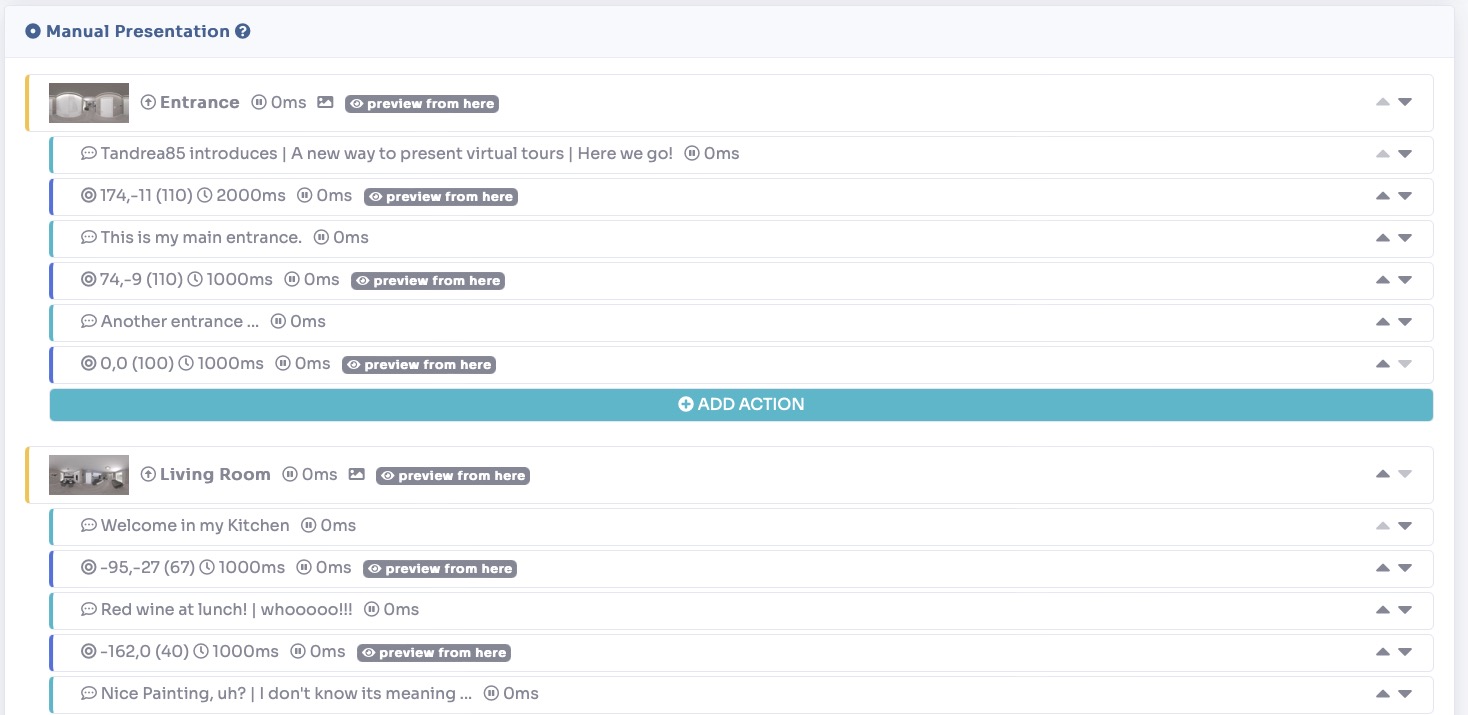
The actions you can do in the room are 2:
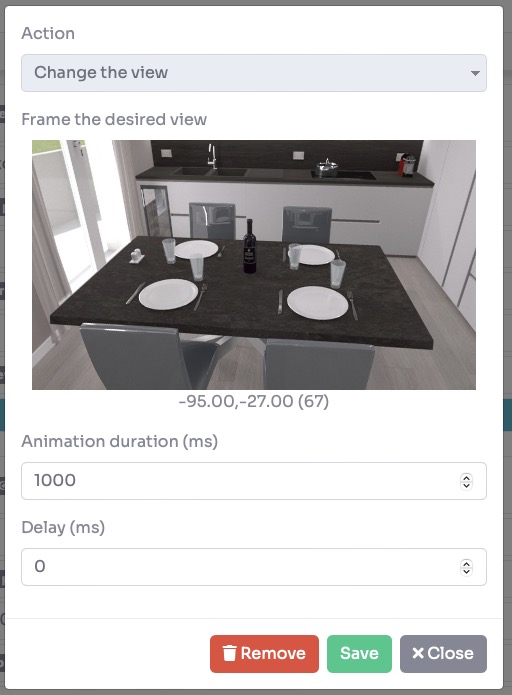
- Change the view — Moves the view in the direction indicated and with the duration indicated in the Animation Duration field
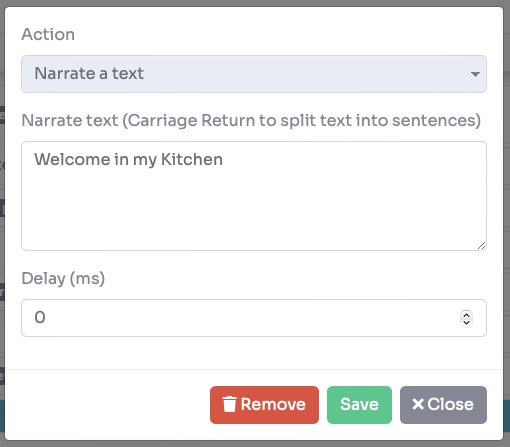
- Narrate a text — Writes on the screen what you write in the Narrate Text field
Video Presentation
In this mode you can record your actions navigating manually through the tour, with the screencast option, or add a video URL from YouTube / Vimeo or upload an existing video.
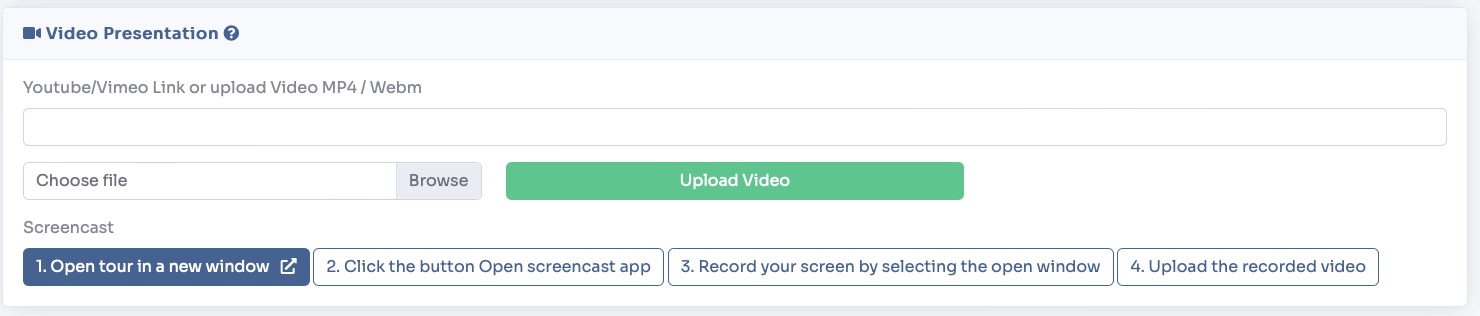
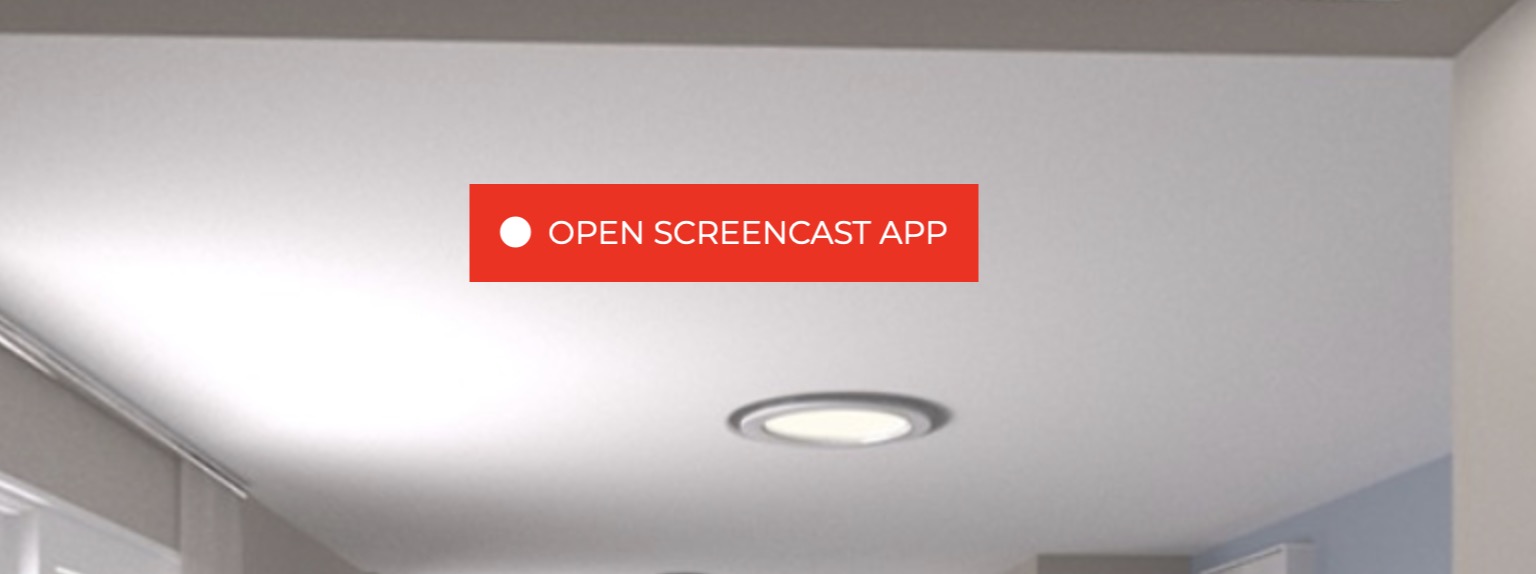
To start recording your video tour you can simply click on the Open Tour in new window button, then click on Open Screencast APP and follow the onscreen instructions.
Now you need to activate the presentation inside your tour.
Select Render Walk → Editor UI from the side menu.
Click on the Presentation menu item and set Show as Visible.
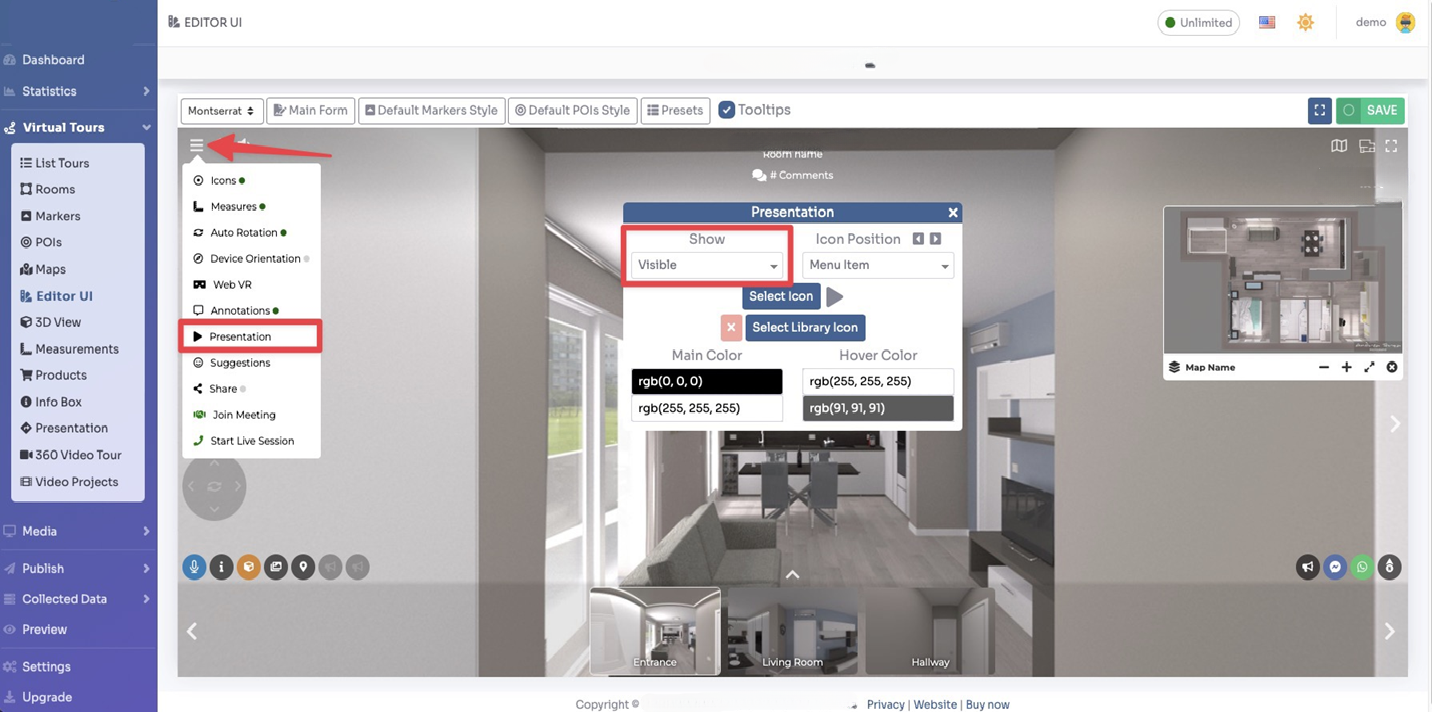
Click Save on top right corner of the page.