How to add a Nadir (Hide Tripod)?
Enabling the Nadir Logo will remove or hide the tripod or support structure visible in the Nadir (bottom) area of the virtual tour images, creating a more seamless and immersive viewing experience.
Select Render Walk → List Tours from the side menu and click the Edit button on the desired tour.

Go to tab Contents / Nadir Logo.
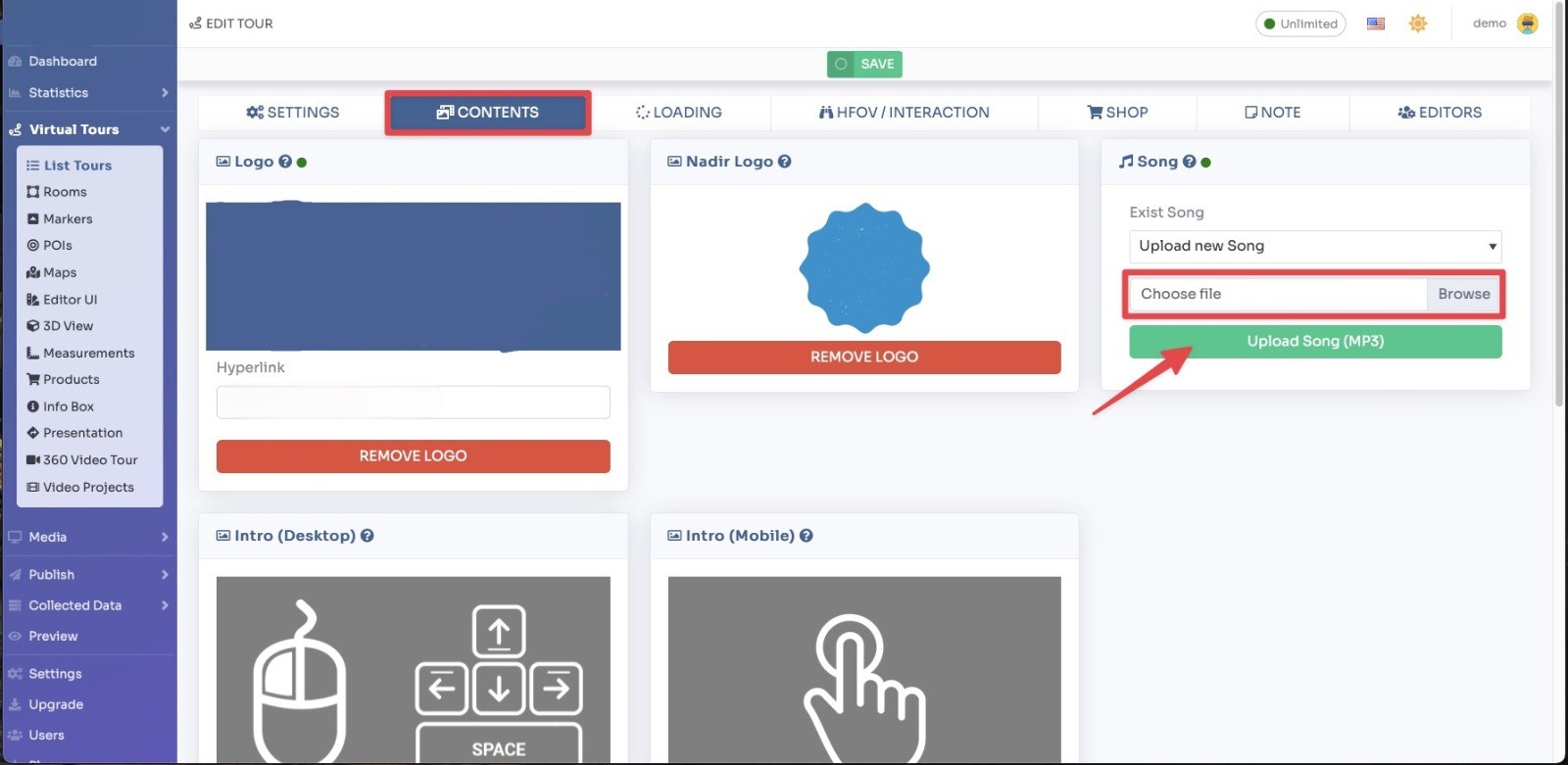
Upload a file with the .png or .jpg extension that will cover the Tripod.
Click Save on top of the page.
You can adjust the size of the Nadir Logo inside the Editor UI, by looking down the view and clicking on the logo.
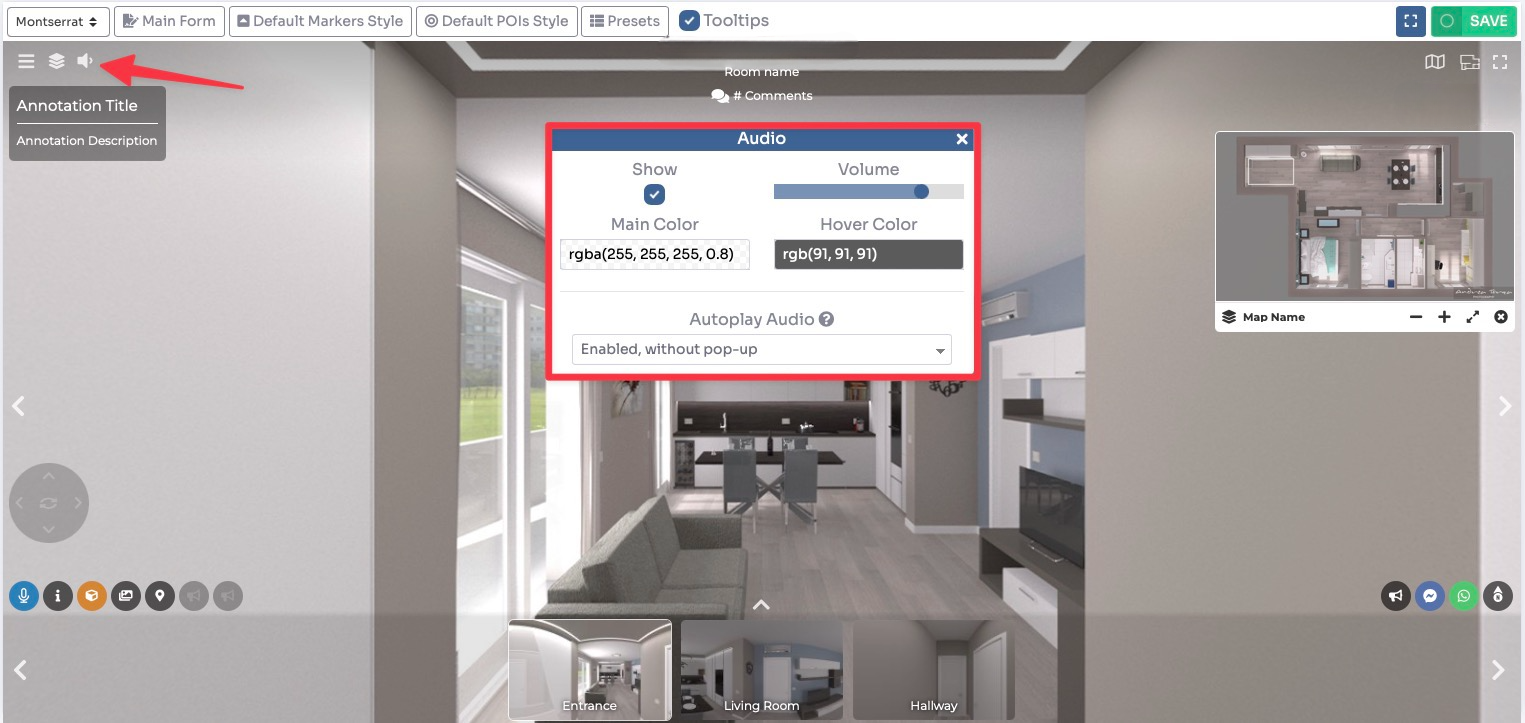
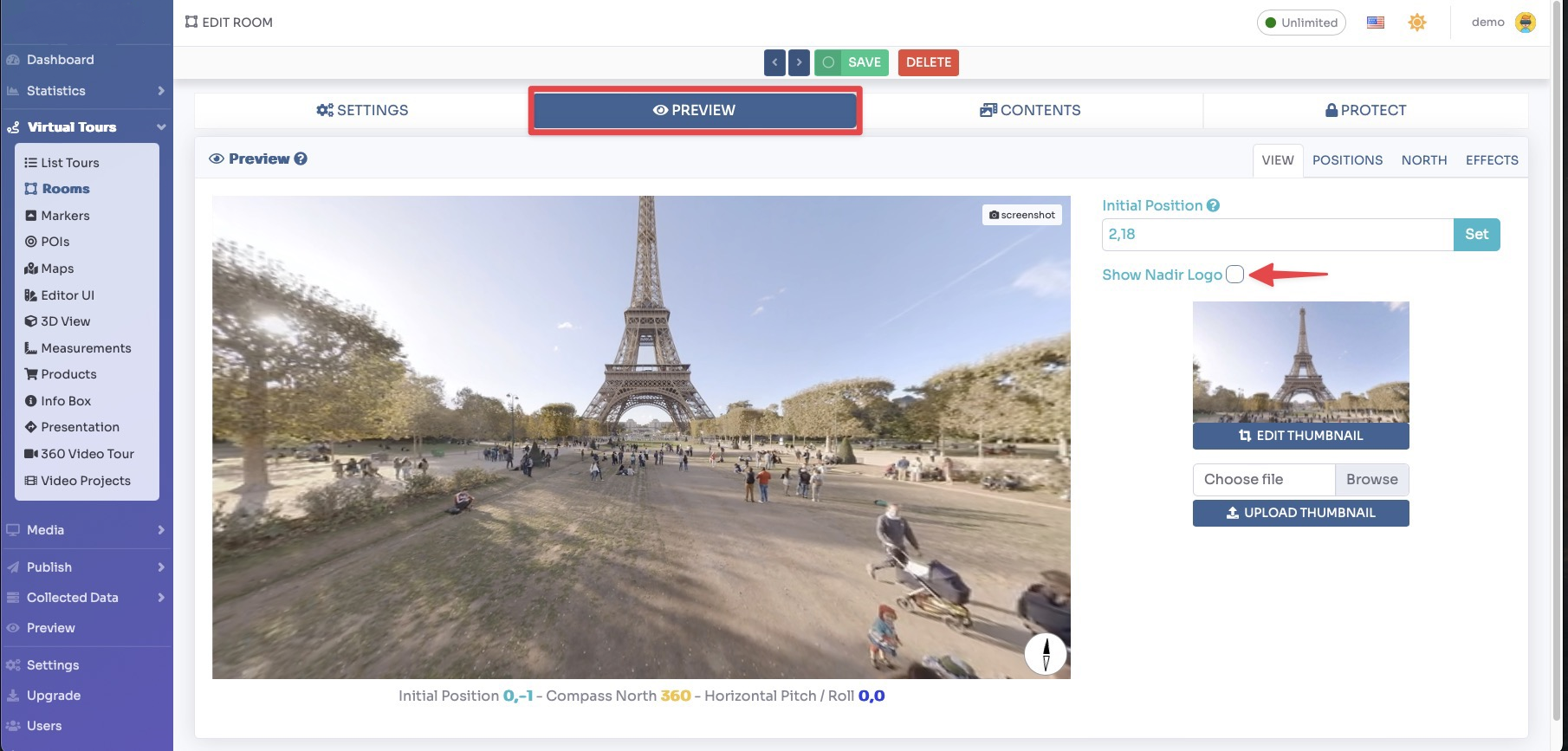
You can also decide whether or not to show the Nadir logo in a particular room.
Select Render Walk → Rooms from the side menu and click the Edit button on the desired room.

Go to tab Preview and enable or disable the flag on “Show Nadir logo”.
Click Save on top of the page.