How to change the quality settings of the panorama images?
You can change the panorama image quality of the tour in Tour settings.
Select Render Walk → List Tours from the side menu and click the Edit button on the desired tour.

Scroll down the page to the Performance section.
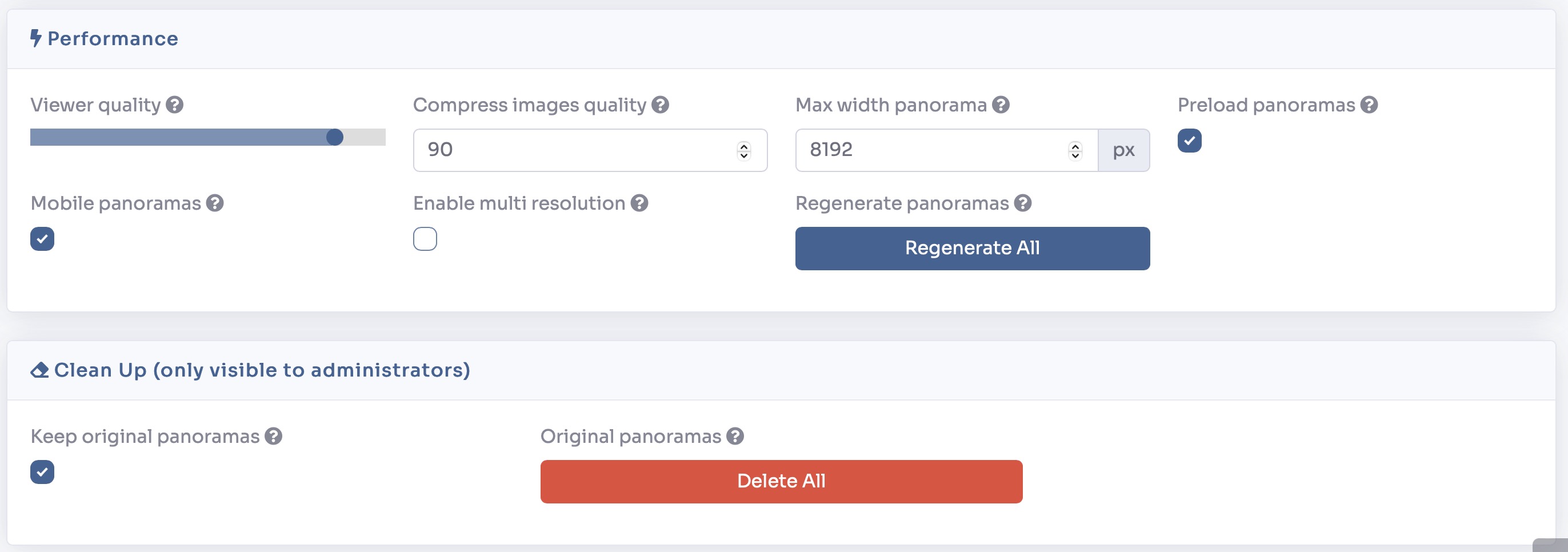
In here you can easily change settings of panorama images and adjust them to the best performance to quality ratio.
These are the settings:
- Viewer quality — Is the overall quality of the viewer
- Compress image quality — Is the image compression parameter (the lower the value, the more the image is compressed to take up less space, but losing quality)
- Max width panorama — Is the maximum pixel size of the image; if the uploaded image exceeds that value it will be resized
- Preload panoramas — If checked, all the rooms will be preloaded in the background
- Mobile panoramas — Creates optimized versions to be viewed on mobile devices
- Enable multi resolution — Divides images into different resolutions loaded asynchronously according to the zoom level
In the Clean Up section you can decide whether or not to keep the original loaded versions. If disabled, you will not be able to change the image quality parameters later.
After you've made your changes click on Regenerate All to apply your changes to the panorama images and click Save on top of the page.