How to set Initial Position of a Room?
Select Render Walk → Rooms from the side menu and click the Edit button on the desired room.

In the room settings, find the Initial Position section. This controls where the viewer is looking when they first enter the room.
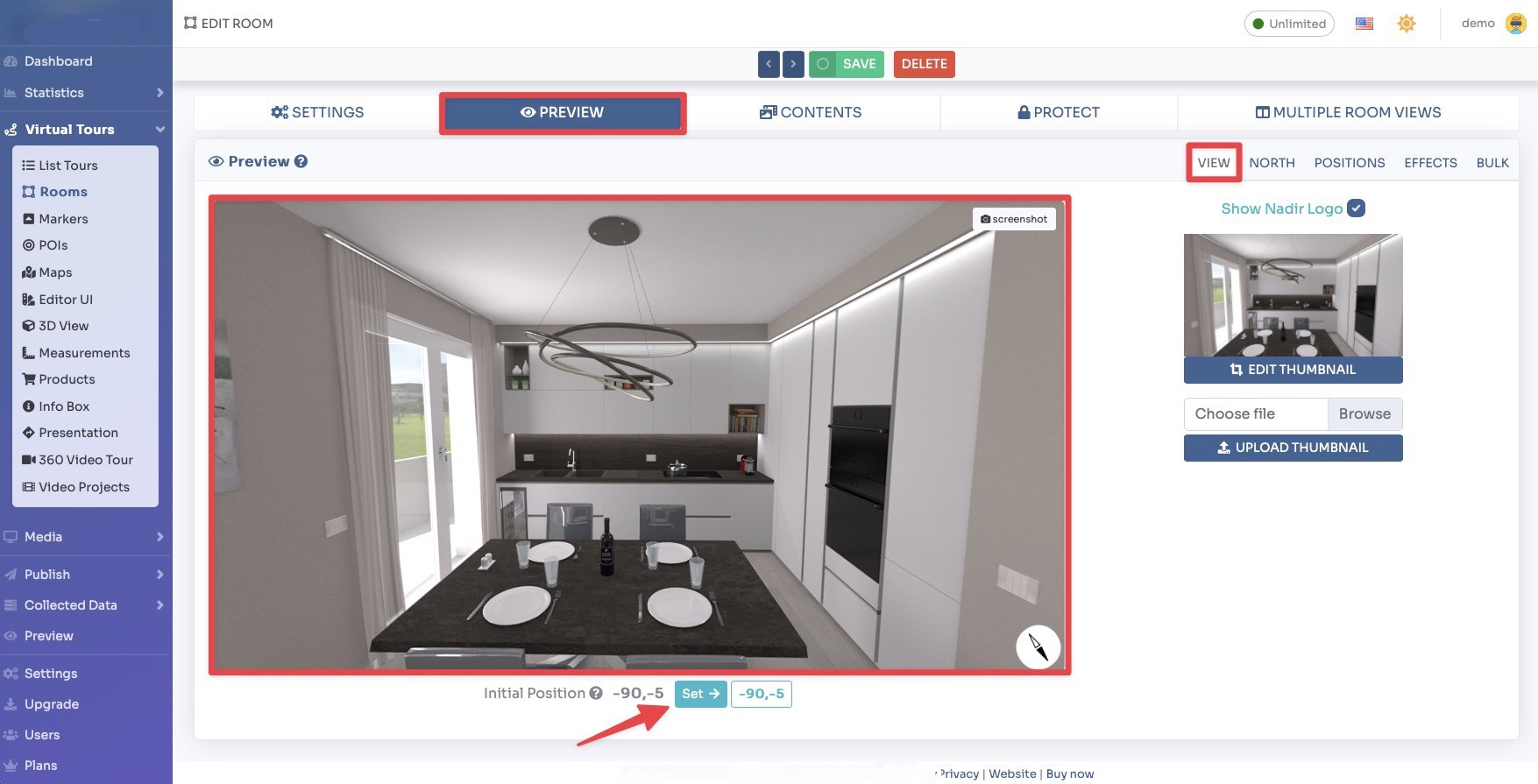
You can set the following initial position parameters:
- Initial Yaw, the horizontal starting angle (left/right). 0 = front, 90 = right, -90 or 270 = left, 180 = behind.
- Initial Pitch, the vertical starting angle (up/down). 0 = straight ahead, 90 = looking straight up, -90 = looking straight down.
- Initial Hfov, the initial zoom level / field of view in degrees. A smaller value zooms in, a larger value zooms out.
Click Save on top of the page.