How do add Effects and Blur a Panorama?
Select Render Walk → Rooms from the side menu and click the Edit button on the desired room.
Go to the Effects tab in the room settings.
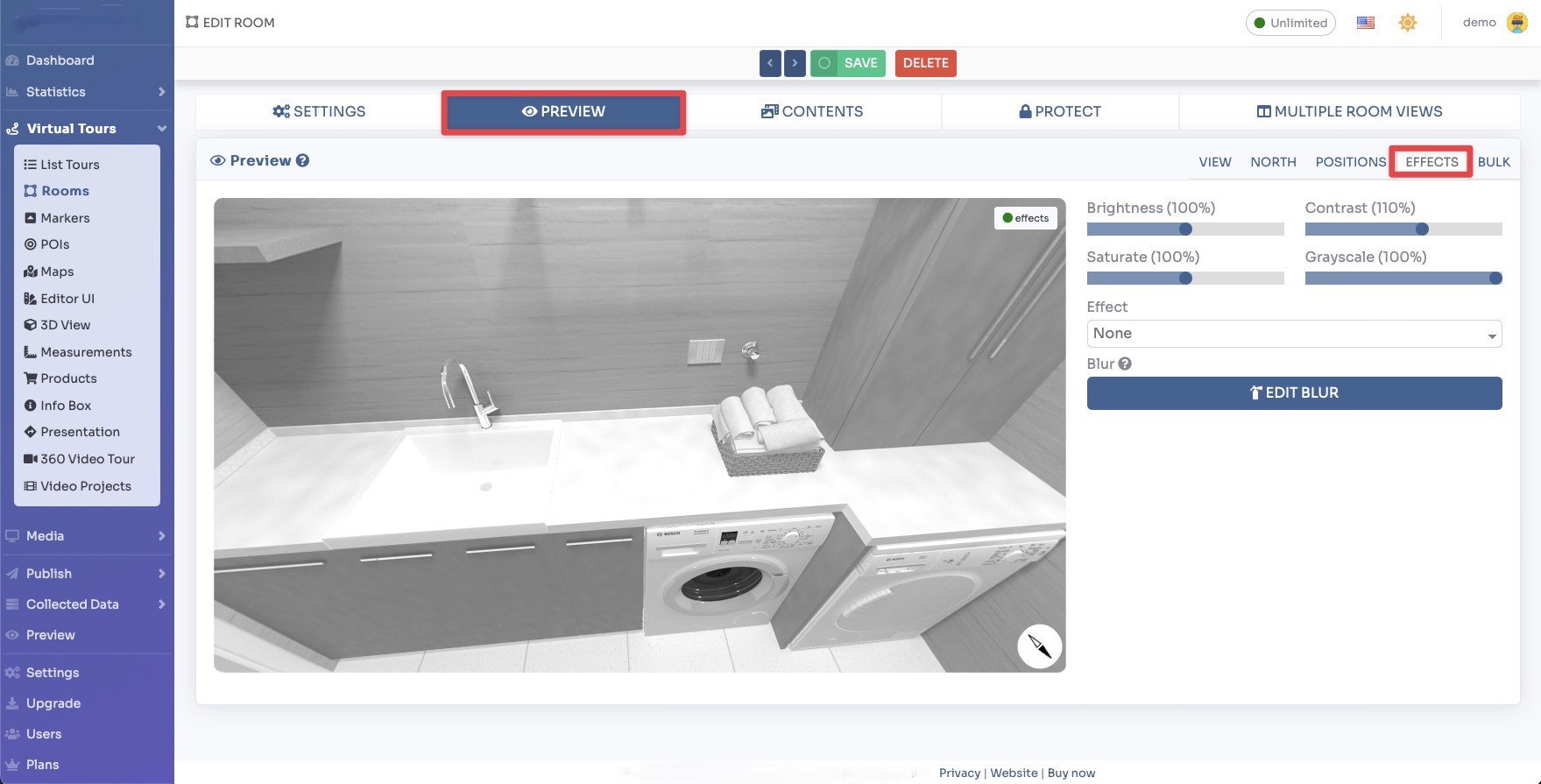
Panorama Effects
You can add atmospheric effects that appear on top of the panorama during the tour. The available effects are:
- Snow, animated snowfall effect over the panorama
- Rain, animated rainfall effect over the panorama
- Fog, a misty fog effect layered on the panorama
- Fireworks, animated fireworks display on the panorama
- Confetti, colorful falling confetti effect
- Sparkle, twinkling sparkle effect on the panorama
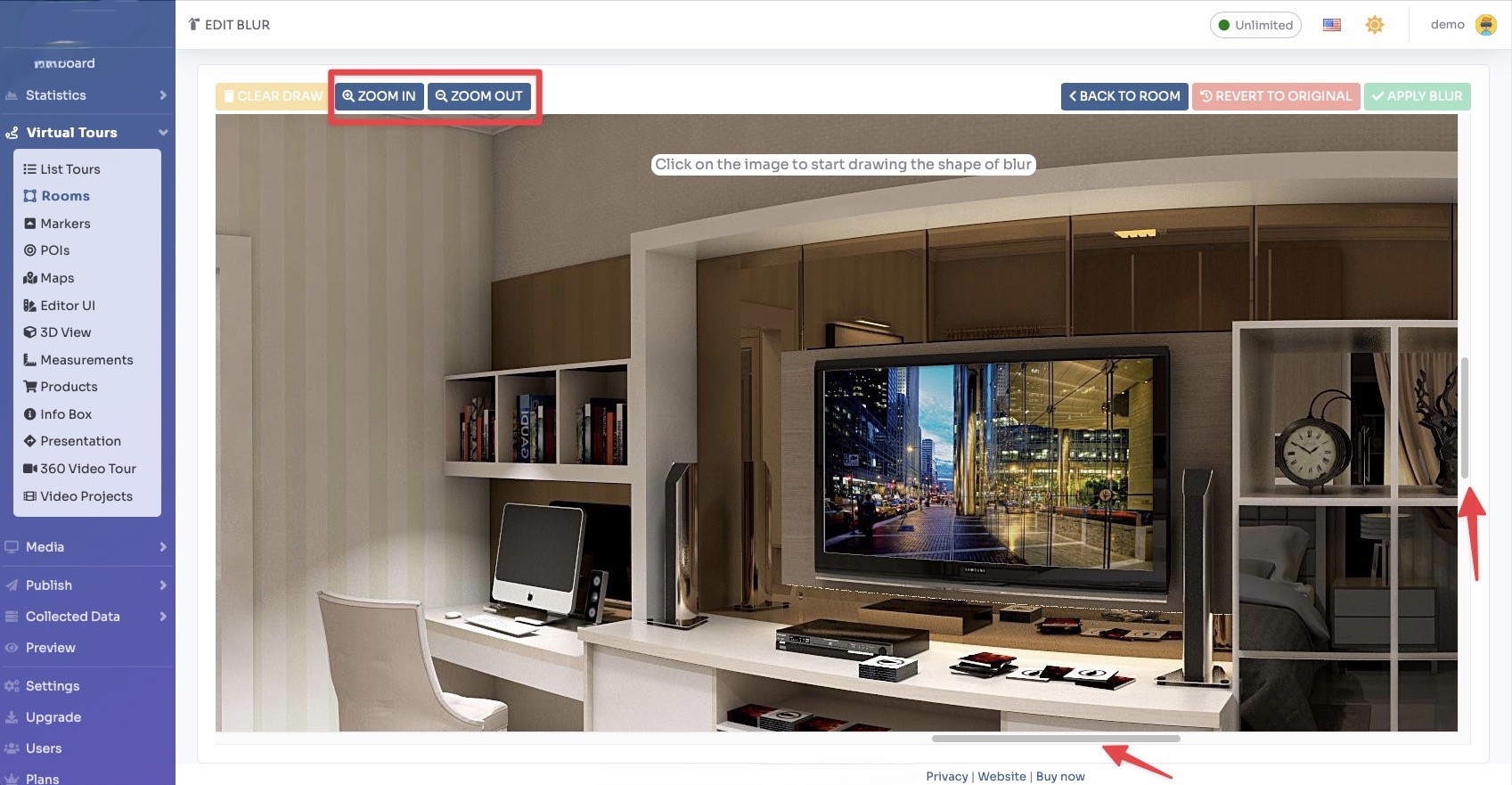
Blur a Panorama
You can blur specific areas of a panorama image, useful for hiding faces, license plates, private information, or equipment like tripods.
In the Blur section, click "+ Add Blur Area" to define a region to blur.
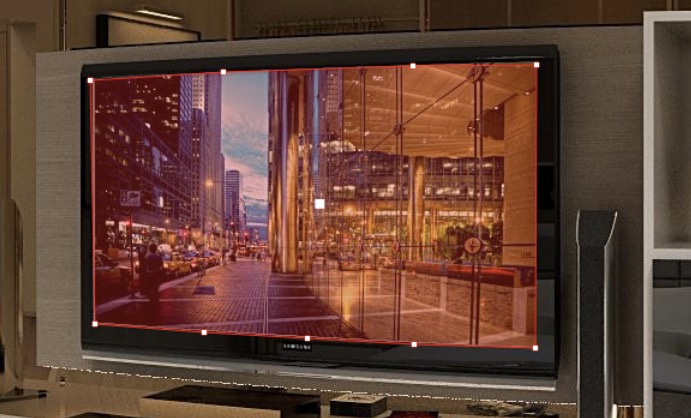
Drag and resize the blur rectangle to cover the area you want to hide. You can add multiple blur areas to the same panorama.
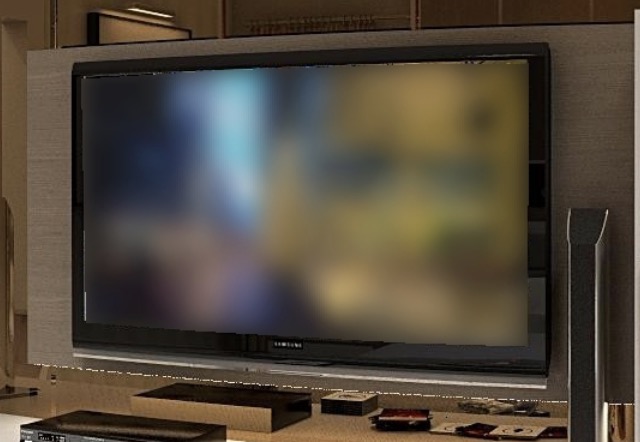
Adjust the Blur Intensity slider to control how strong the blur effect appears.
Click Save to apply the effects and blur settings to the room. The effects will be visible to all visitors when viewing this room in the tour.