How to adjust non 360 degree panorama (partial panorama)?
Select Render Walk → Rooms from the side menu and click the Edit button on the desired room.

Go to tab Preview / Position.
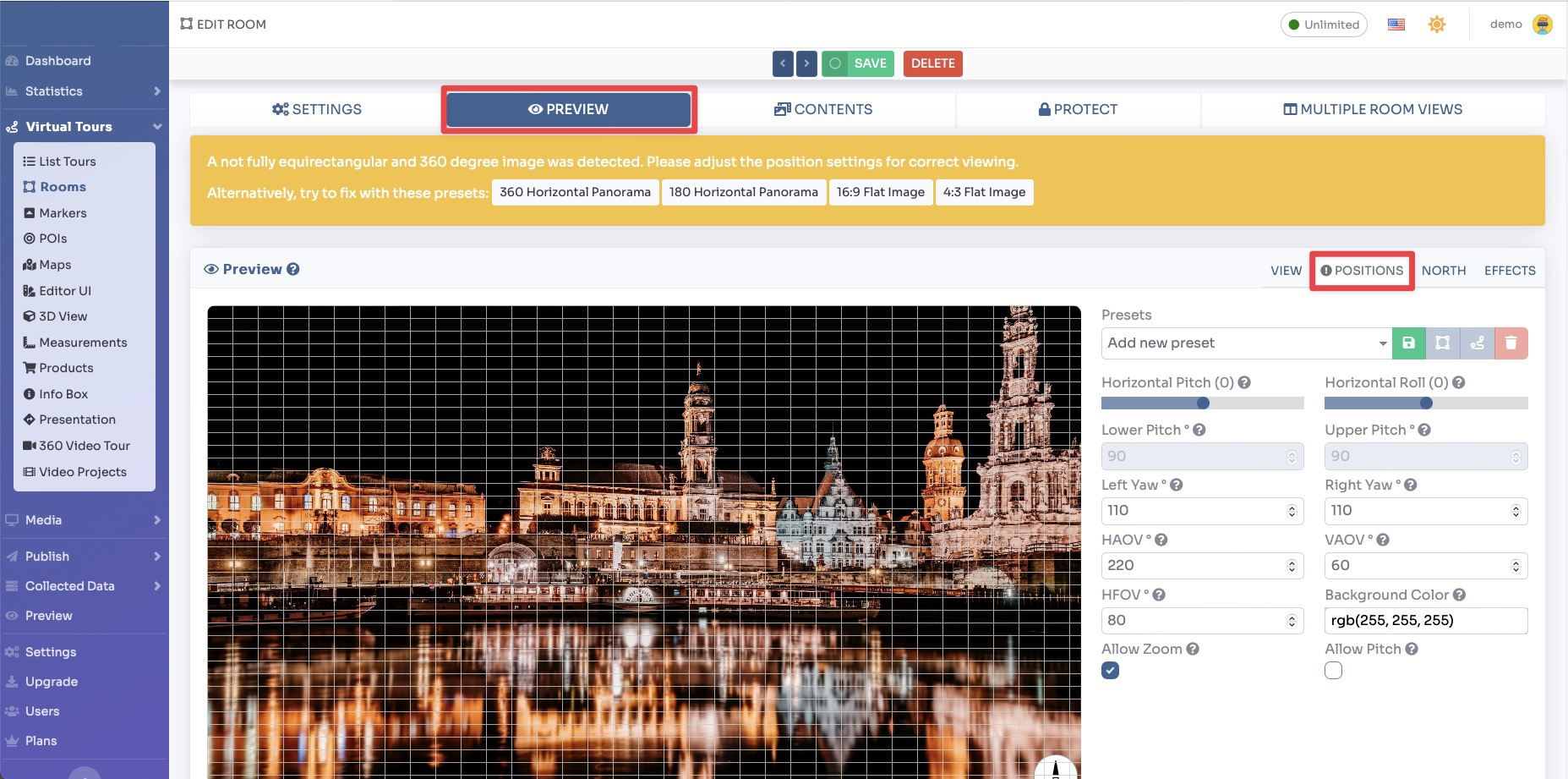
The system automatically offers you some presets to limit the view of non-360-degree panoramic images, otherwise you can adjust the following
parameters manually:
- Horizontal Pitch, specifies pitch of image horizon (for correcting non-leveled panoramas)
- Horizontal Roll, specifies roll of image horizon (for correcting non-leveled panoramas)
- Lower Pitch, maximum vertical inclination in degrees for limiting the view down
- Upper Pitch, maximum vertical inclination in degrees for limiting the view up
- Left Yaw, maximum horizontal inclination in degrees for limiting the view left
- Right Yaw, maximum horizontal inclination in degrees for limiting the view right
- HAOV, sets the panorama’s horizontal angle of view
- VAOV, sets the panorama’s vertical angle of view
- HFOV, sets the panorama’s horizontal field of view
- Background Color, color shown for partial panoramas visible areas
- Allow Zoom, enable zoom of view
- Allow Pitch, enables vertical inclination of view
After adjusting the panorama click Save button on the top of the page.
You can view a live preview of Partial Panorama in this demo