How to enable Comments in Tours?
Select Render Walk → Settings, from the side menu. Go to tab General.
Scroll down to the Comments section.

Follow the instructions to create and connect the Disqus account by filling in the Shortname and the API key.
Selecting "Allow editing in tours" will give you the option to set up different Disqus accounts for different tours. Otherwise you will always use the one set by the administrator in the settings.
You can enable the comments for a tour inside the Editor UI.
Select Render Walk → Editor UI from the side menu. Click on the Comment icon.
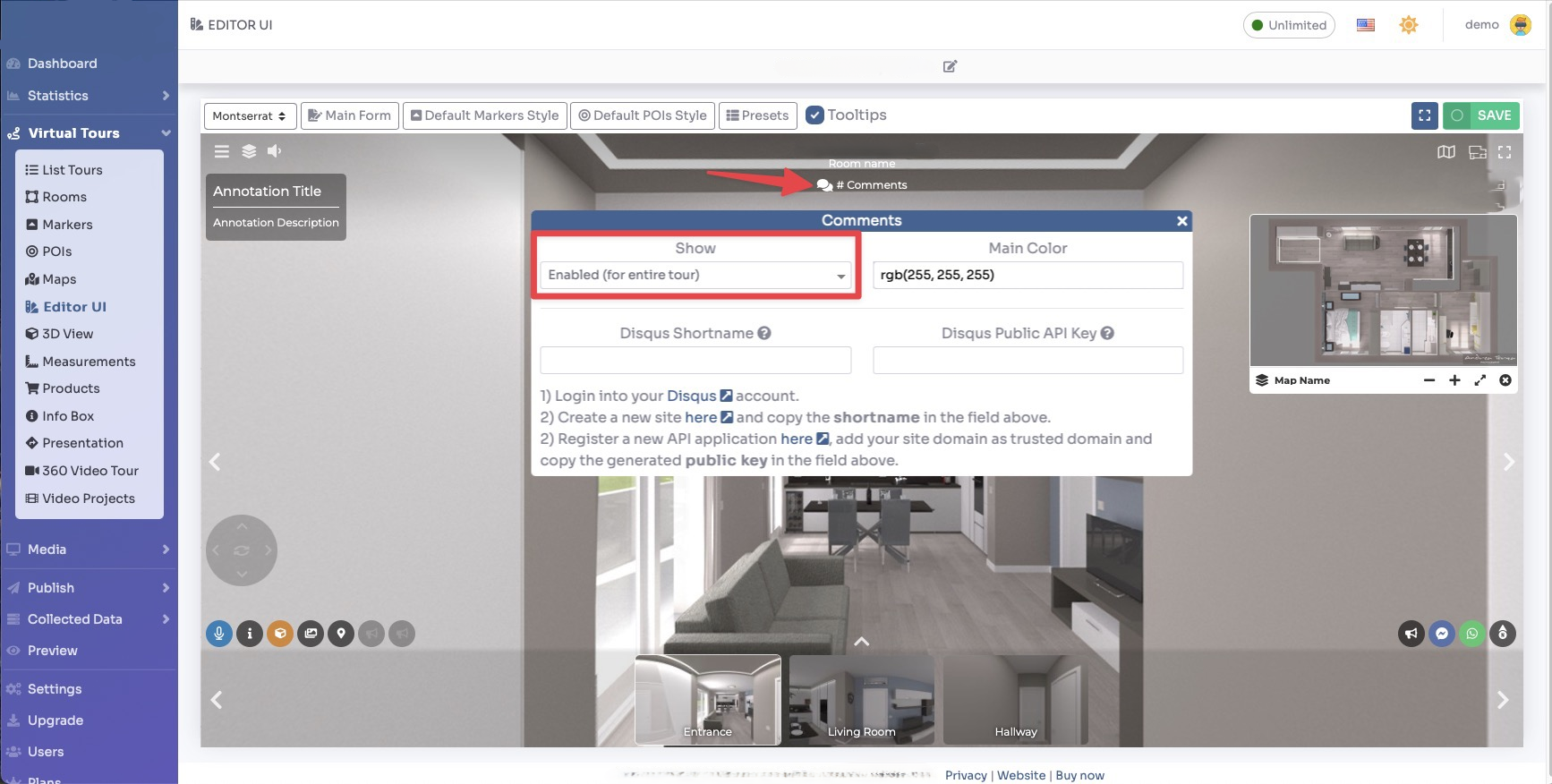
You can enable comments throughout the entire tour or set them individually for each room.
If you have "Allow editing in tours" enabled in the settings, you will be able to set up a different Disqus account for this tour. Otherwise you will not.
Click Save on the top right corner of the page.
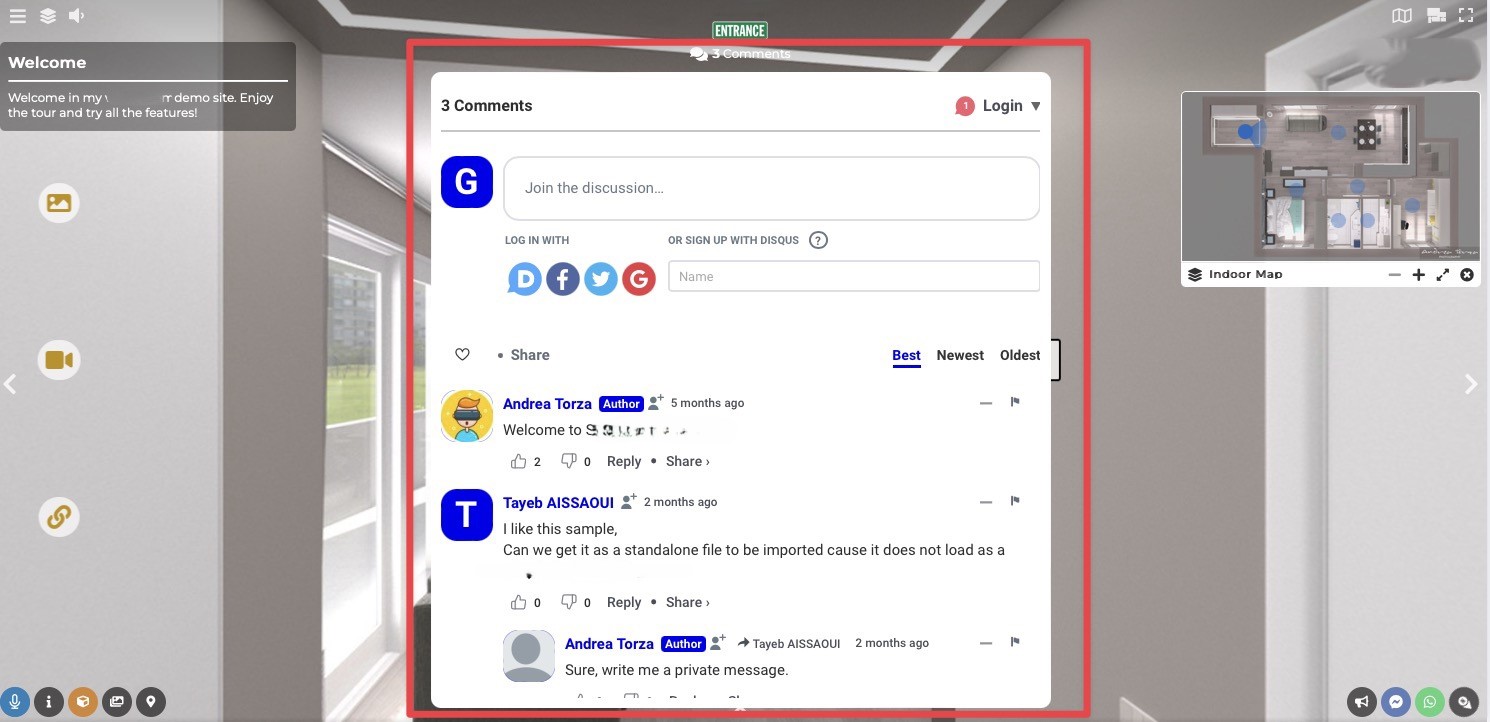
This is an example of the end result: