How to configure Payments?
Select Render Walk → Settings, from the side menu. Go to tab Payments.
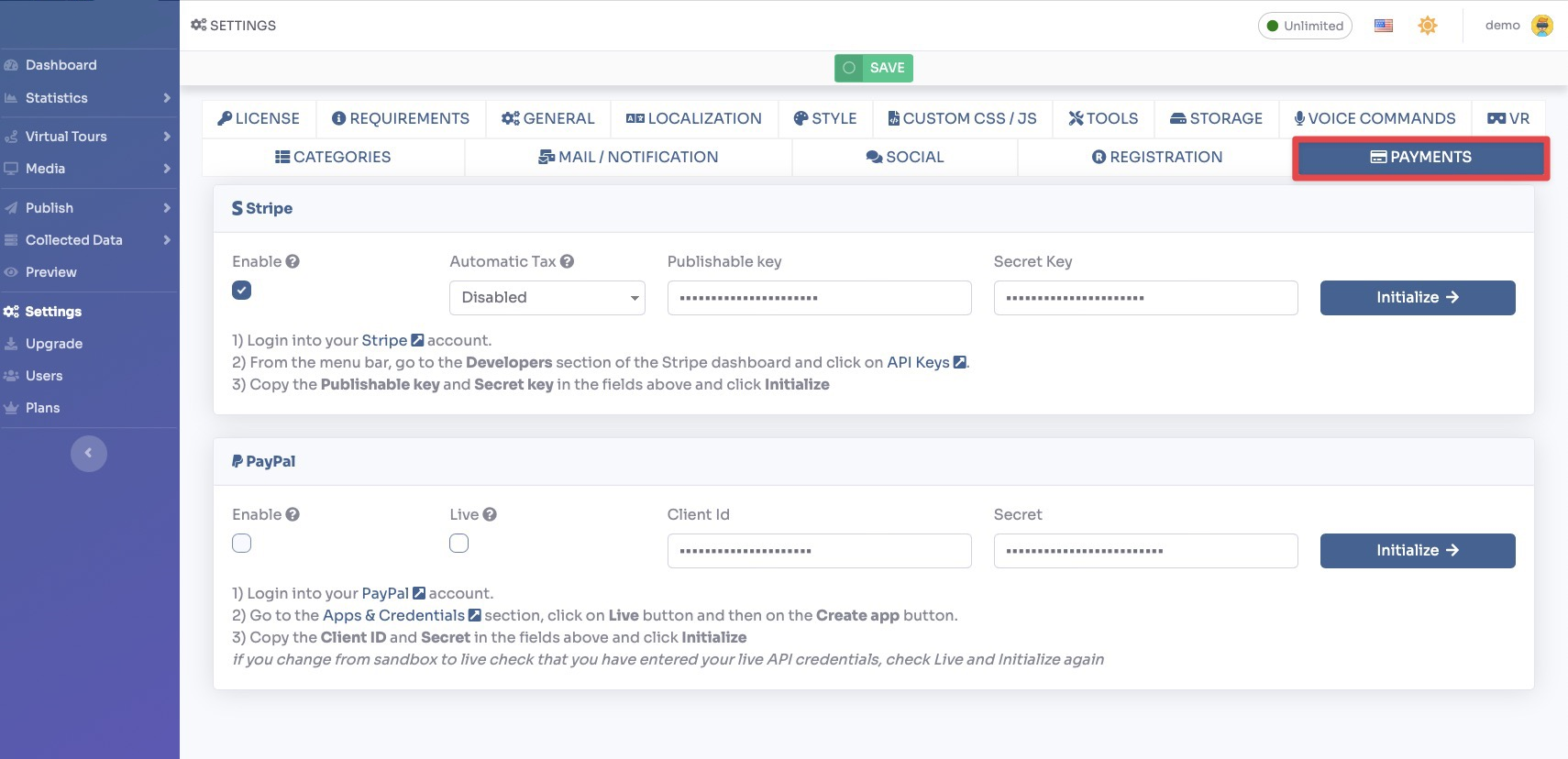
Render Walk supports three payment providers: Stripe, PayPal, and Paddle. Enable the ones you want to use by toggling them on.
Stripe
To configure Stripe:
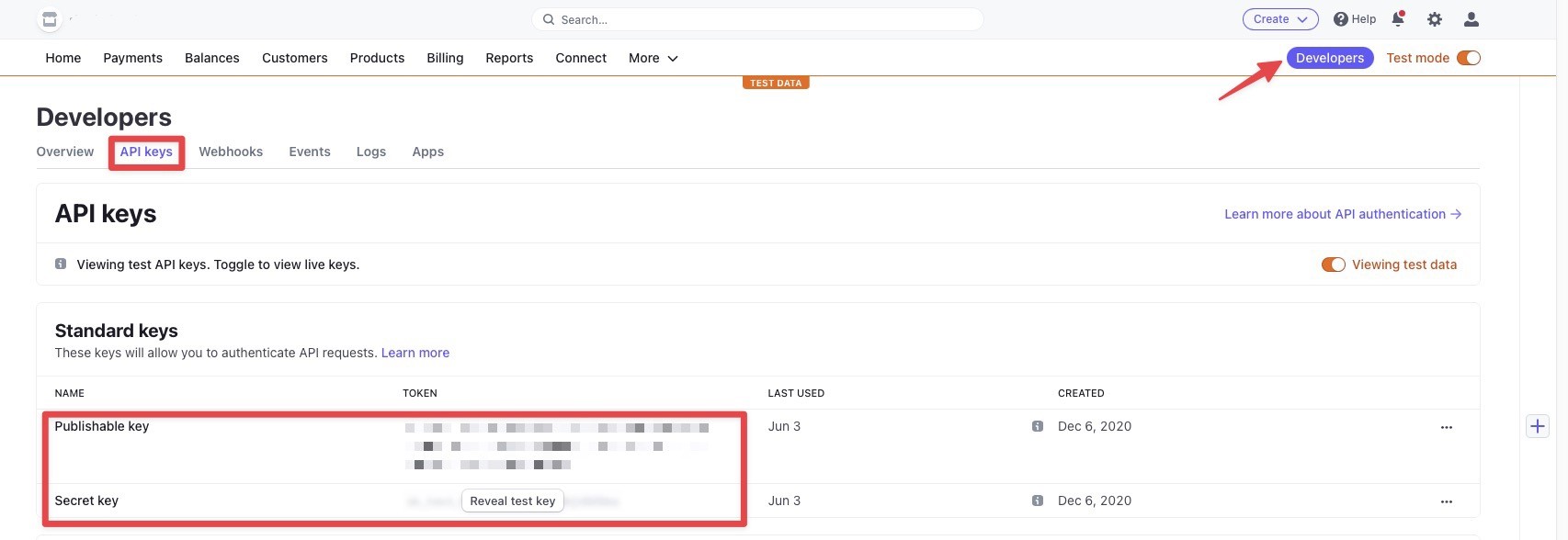
- Log in to your Stripe Dashboard.
- Go to Developers → API keys.
- Copy your Publishable key and Secret key and paste them in the corresponding fields.
To configure the Stripe Webhook:
- In your Stripe Dashboard, go to Developers → Webhooks.
- Click + Add endpoint.
- Enter the Webhook URL shown above in the endpoint URL field.
- Select the events to listen to:
checkout.session.completed,customer.subscription.updated,customer.subscription.deleted. - Copy the Signing secret and paste it in the Stripe Webhook Secret field.

PayPal
To configure PayPal:
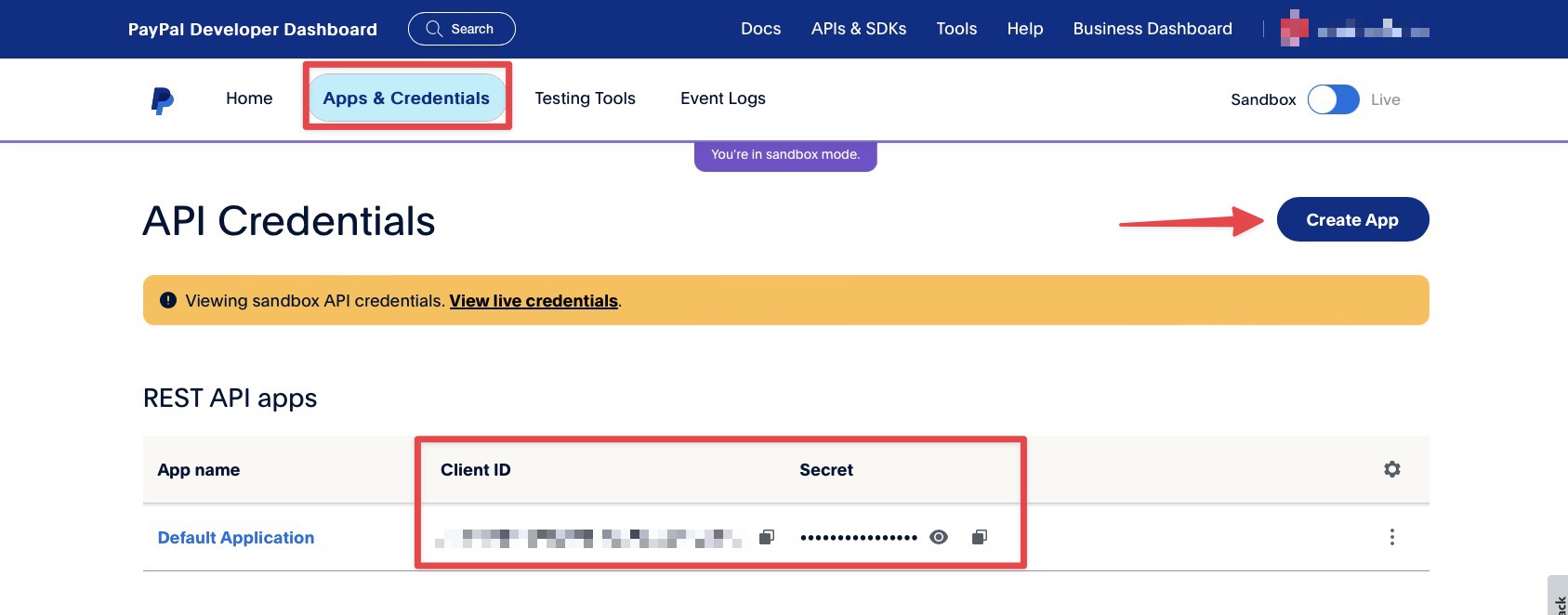
- Log in to your PayPal Developer account.
- Go to Apps & Credentials and create a new app.
- Copy the Client ID and Secret and paste them into the corresponding fields.
Set the PayPal Webhook:
- In your PayPal app settings, go to Webhooks and add the Webhook URL shown above.
- Select the events:
BILLING.SUBSCRIPTION.ACTIVATED,BILLING.SUBSCRIPTION.CANCELLED,BILLING.SUBSCRIPTION.EXPIRED.
Paddle
To configure Paddle:
- Log in to your Paddle Vendor Dashboard.
- Go to Developer Tools → Authentication.
- Copy your Vendor ID and API key and paste them in the corresponding fields.
Once all payment credentials are entered, click Save to apply the configuration.
