How to embed an Image / Video into a Panorama?
Select Render Walk → POIs from the side menu.
Select the room you want to embed an image or video into and click the "+" button on the top right.

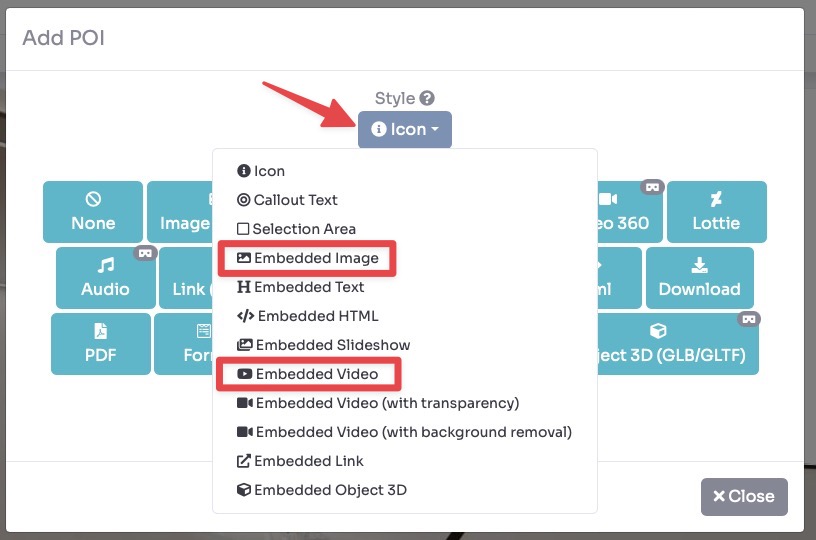
A pop-up opens and there you can select the style of POI as embed image or video.
After selecting the style you can click the desired content button to create the POI. None means that the POI is not clickable.
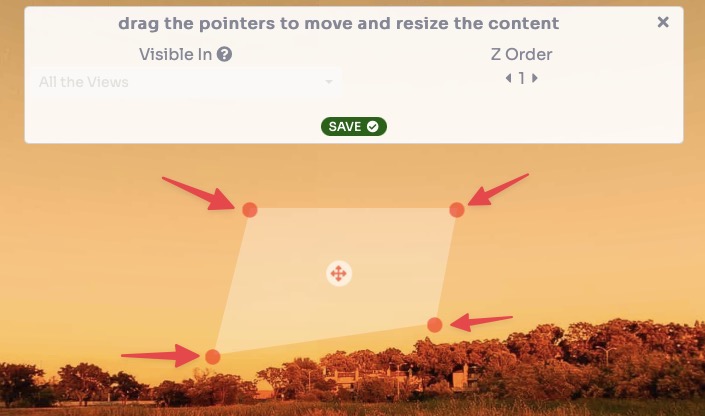
A rectangle will be added where you can insert the content to embed: you can drag the 4 pointers to shape the POI area.
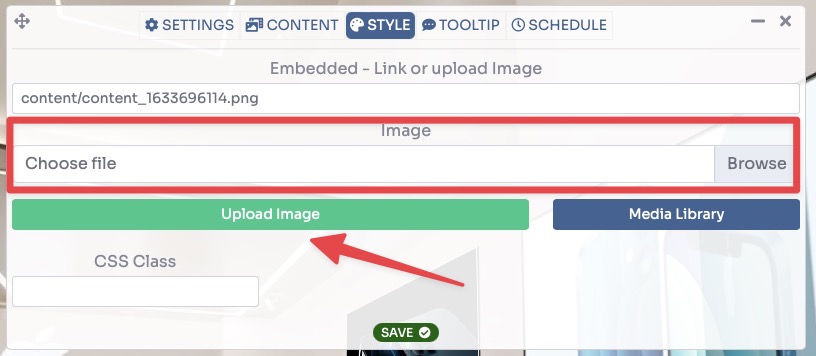
If you have chosen to embed an image, click the Browse button, upload the image from your disk, and click Upload Image to begin uploading. Once you are done, click on the Save button.
If you have chosen to embed a Video, click the Browse button, upload the video from your disk, and click Upload Video to begin uploading. Or you can enter a link to a YouTube video in the Content field.
You can also set whether to start the video automatically, with audio or without and looping or not.
Once you are done, click on the Save button.
You can view a live preview of embed image / video in this demo.