How to add a Map?
Select Render Walk → Maps, from the side menu.
Click on the "+" icon on the top right to create a new Map.
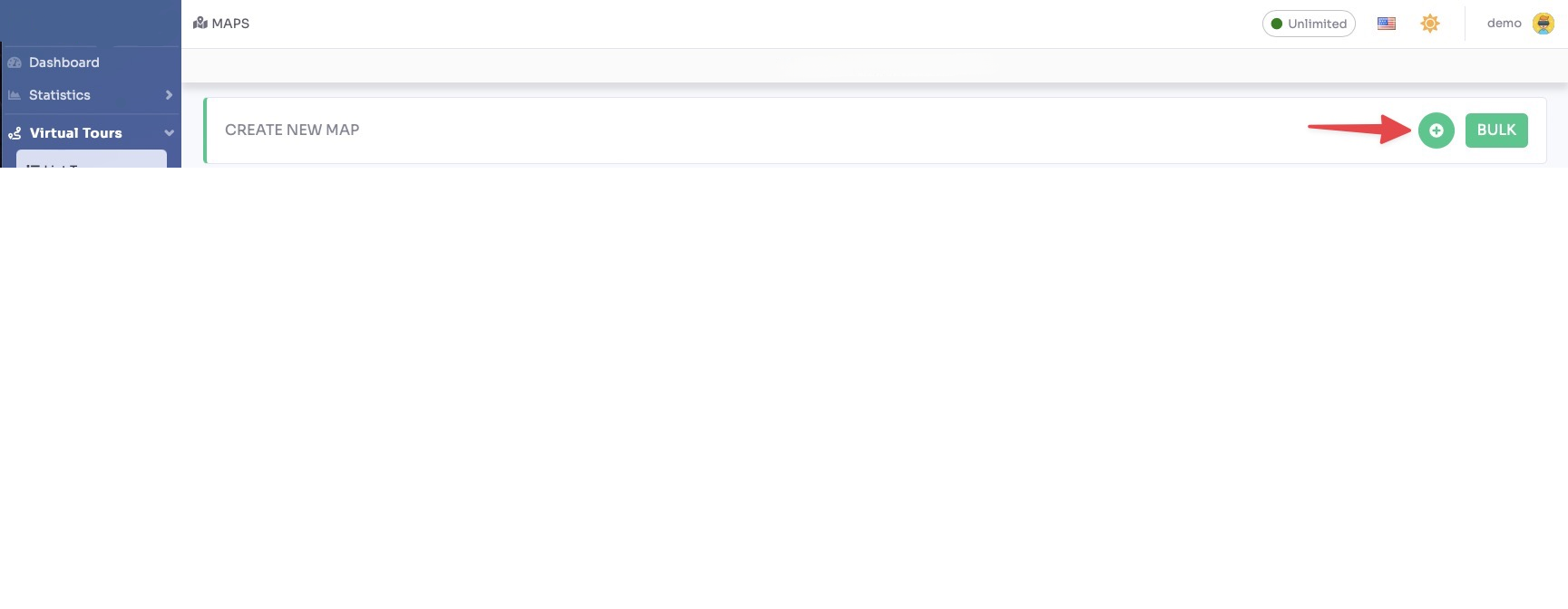
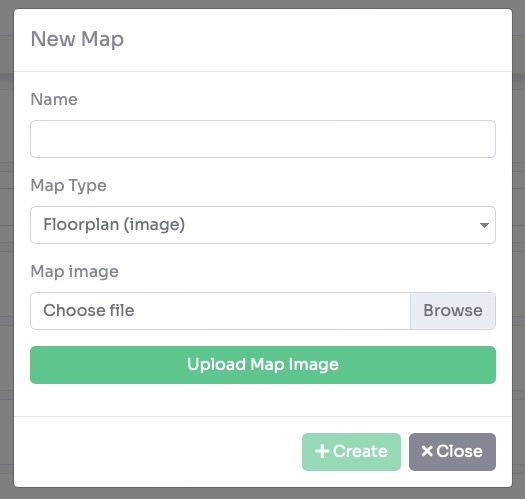
In the new map form, enter the following:
- Name, the name of the map (e.g. Location Map, Site Map)
- Type, select the map type:
- Map North, a standard geographic map with a north orientation indicator
- Map Custom, use a custom uploaded image as the map (site plan, neighbourhood layout, etc.)
- Map Cartesian, a flat coordinate-based map without geographic orientation
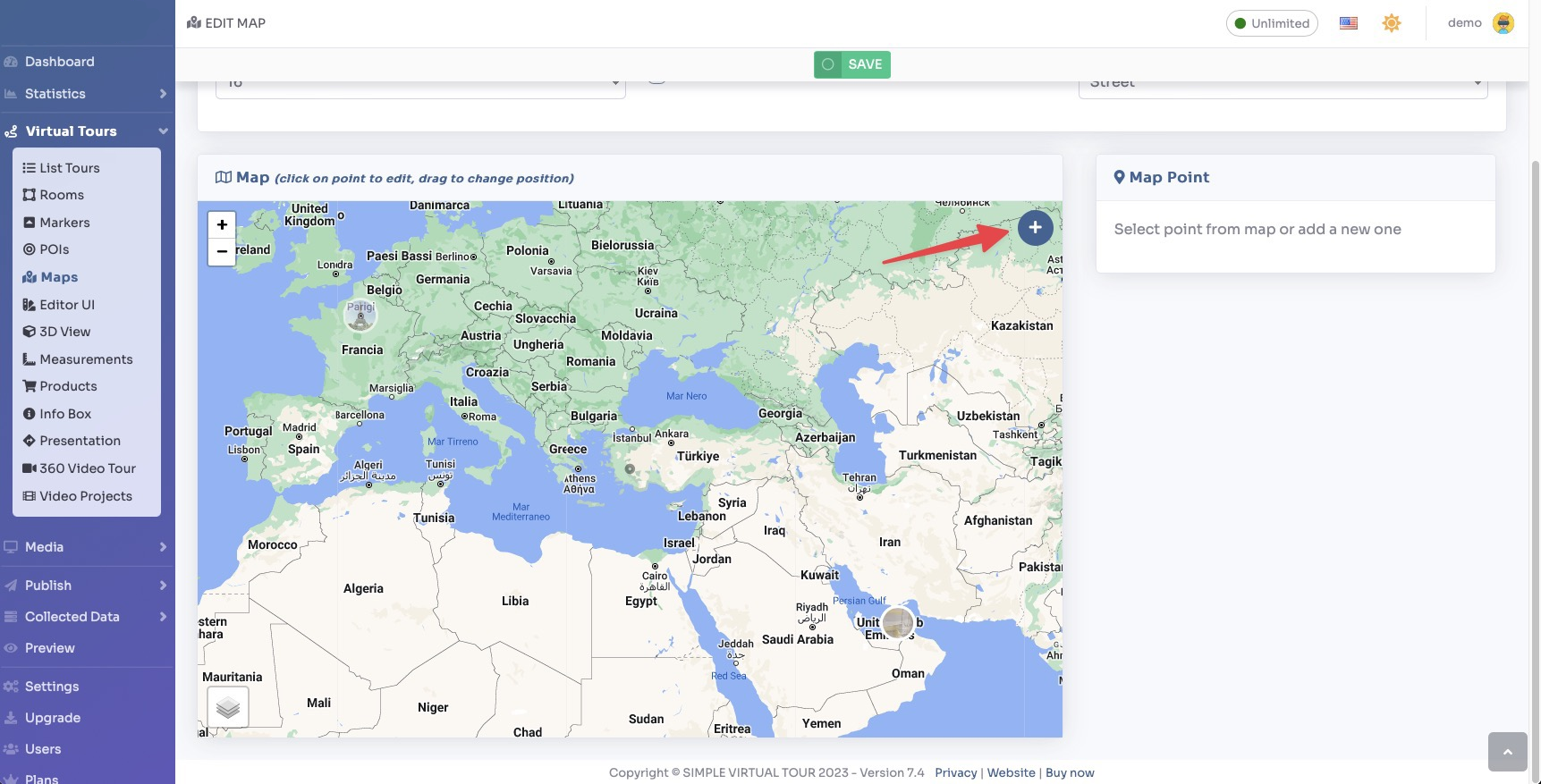
After selecting the type and clicking "+ Create", the map editor opens. All the rooms in your tour are listed on the right side panel.
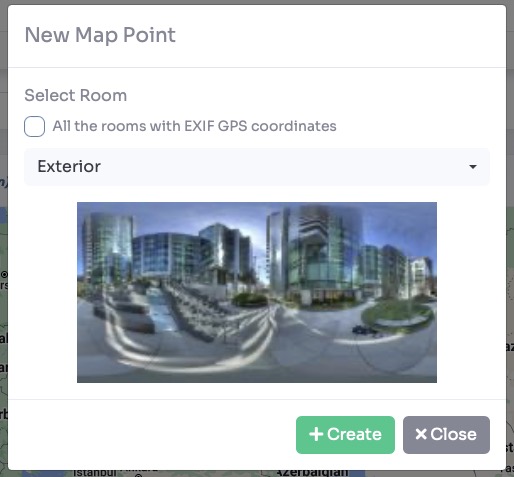
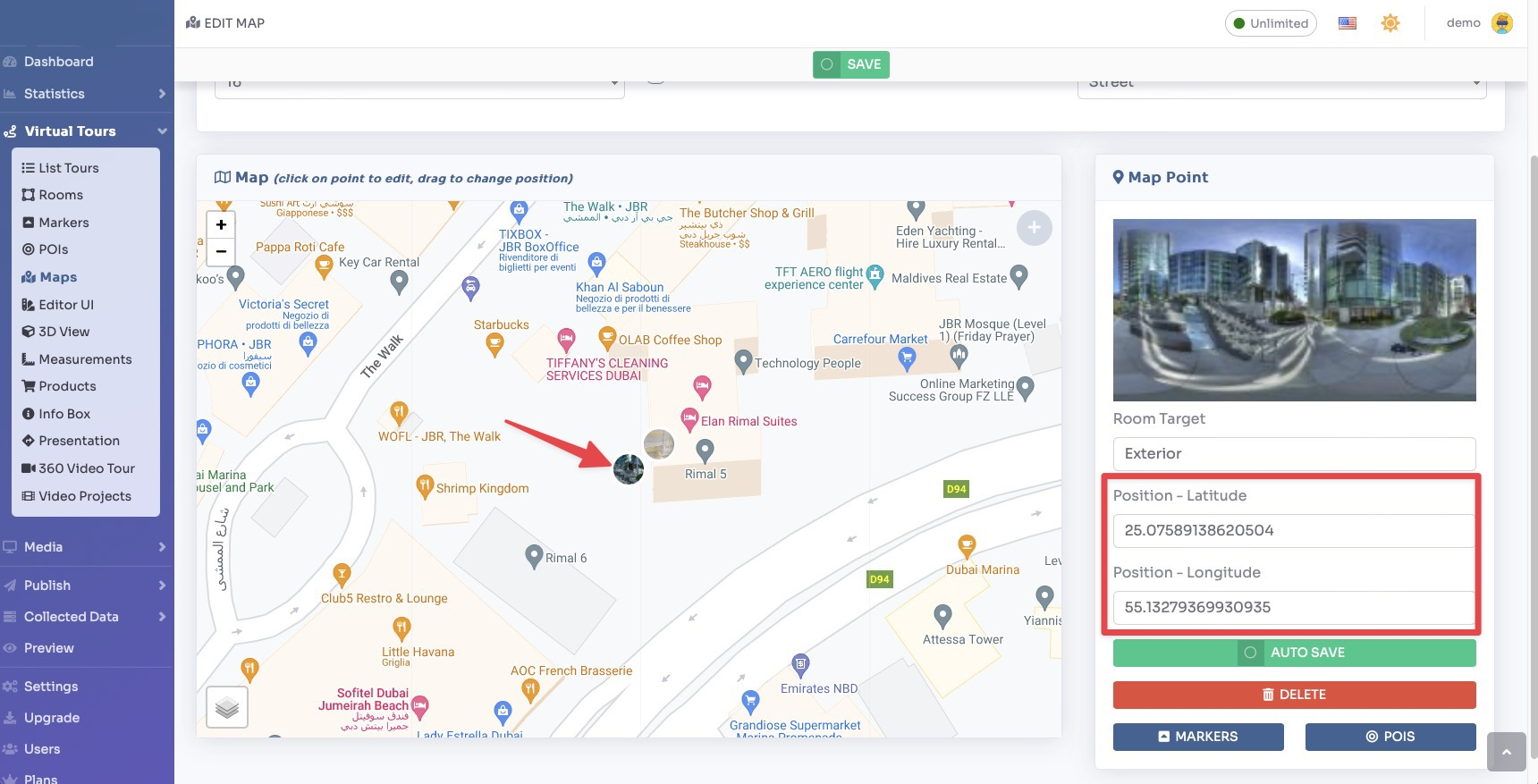
To assign rooms to map positions, click a room name from the right panel then click the location on the map where that room is physically situated. A pin will appear marking that position.
Repeat for every room. You can drag pins to refine their positions at any time.
In the Settings tab you can configure how the map widget appears in the tour:
- Position, where the map widget appears on screen
- Default Open, whether the map is open or collapsed when the tour loads
- Zoom Level, the initial zoom level of the map when it opens
- Show Room Name, displays a label with the room name on each pin
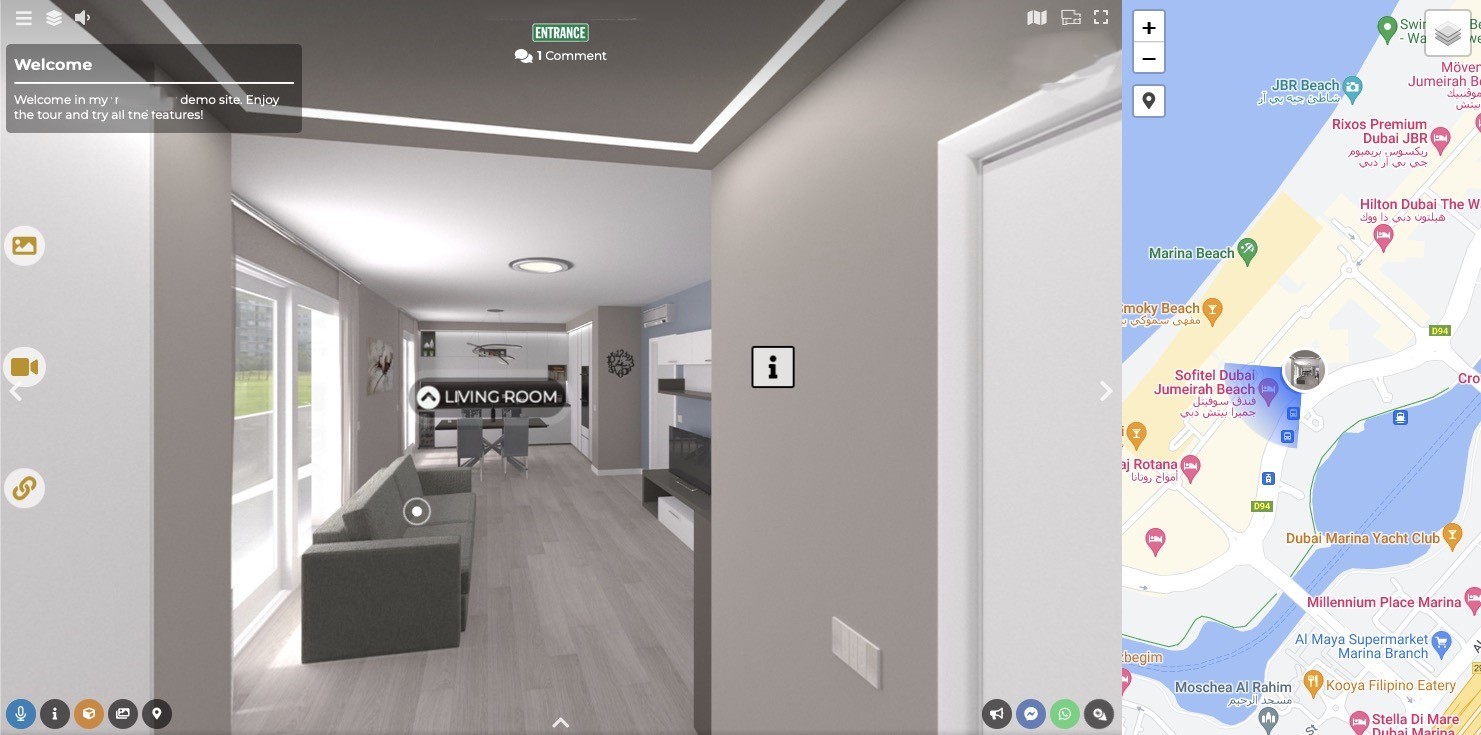
- Highlight Current Room, automatically pans the map to show the visitor's current location as they navigate
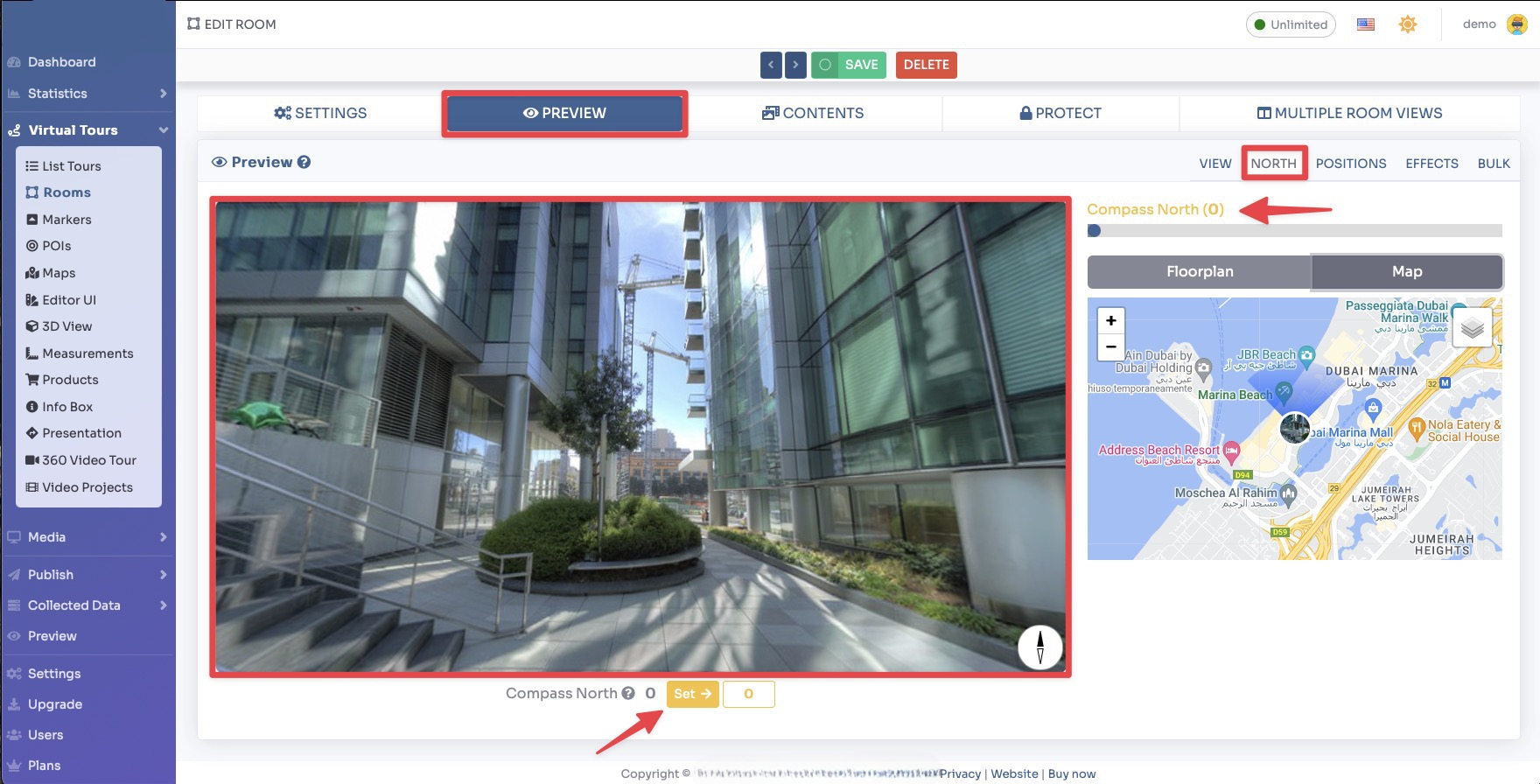
- Show Compass, display a north-pointing compass on the map (available for Map North type)
Adding a Google Map or Street View
You can also embed a Google Map or Google Street View directly inside your tour. First, get the embed code from Google Maps.
Maps embed code: Search the location on Maps, click on Share, go to tab Embed Maps and click Copy HTML.
Street View embed code: Search the location on Maps, enter Street View mode, click on the 3 dots on the top left corner, go to tab Embed Maps and click Copy HTML.
Now insert the embed code inside the tour. Select Render Walk → Editor UI from the side menu. Click on the Location icon then click the gear button.
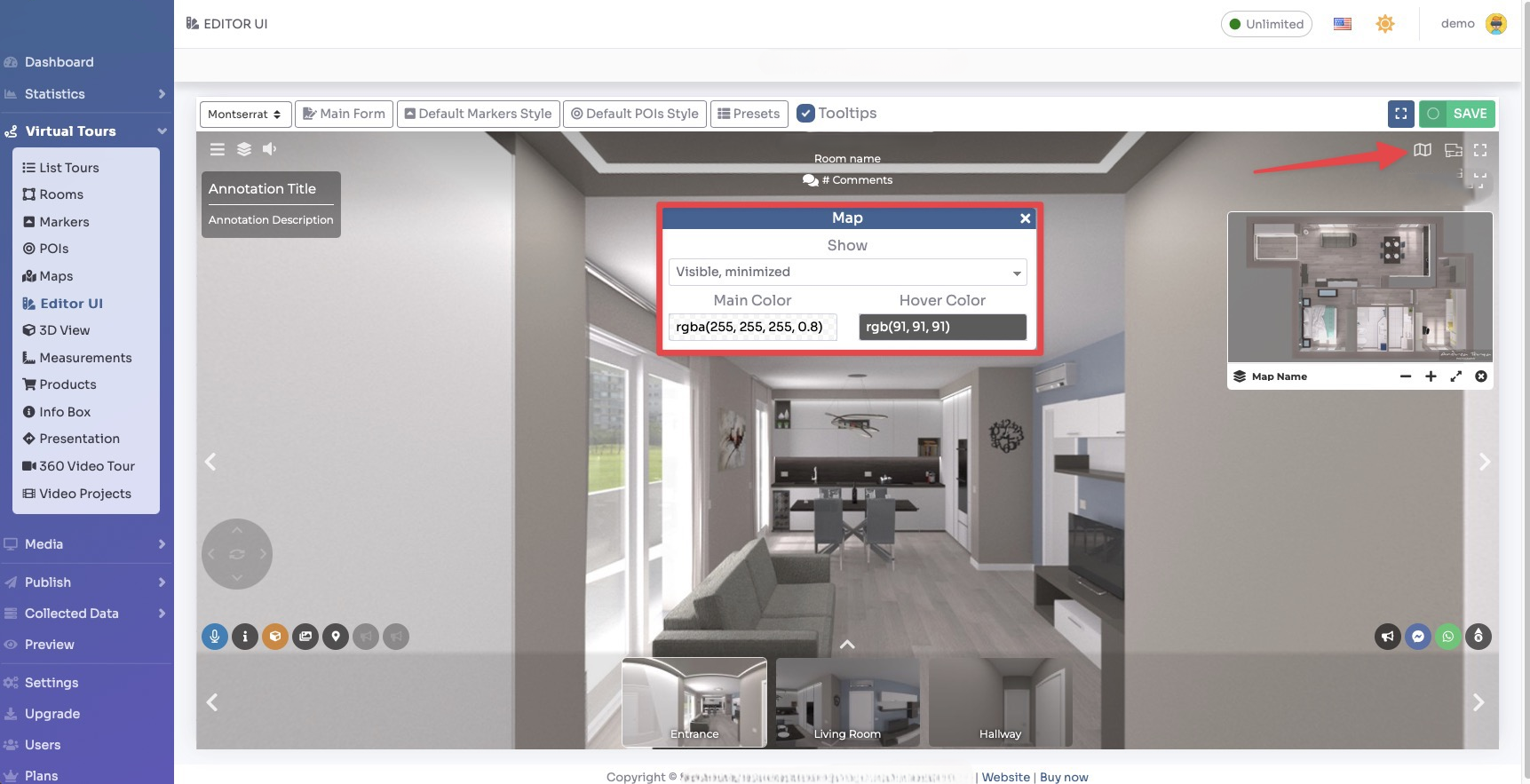
Paste the Google Maps or Street View embed code into the field and click Close, then click Save on the top right.
You can also add the map as a POI inside a room. Select Render Walk → POIs, choose a room and click "+".
Select the style of the POI and click Map as the content type.
Drag the POI icon to position it in the panorama, then click Save.
In the Content tab, paste the embed code from Google Maps or Street View.
Click Save. The Google Map or Street View will now appear as an interactive POI inside the room.